Adobe has published a free, web-based, image-editing application. Adobe’s Photoshop Express joins several other image-editors already online. As soon as it became available, I examined it to determine how it compares with the online image-editor that I currently use… and to determine which Photoshop-like procedures I would be able to use with this new application.
I chose not to share my experiences as a tech tip at that point due to the Terms of Service. I was not the one to initially discover that the Terms gave Adobe more control over users’ content than many users would like; however, when I reviewed the Terms, I agreed that they were not what I wanted to accept. Adobe has since modified the Terms and, consequently, I can now recommend the application.
My first reaction was one of disappointment. Since this application is Photoshop Express, I figured I would be able to use layers. However, there are no layers.
As I tried various editing functions, I was surprised to see preview thumbnails of my image. I can click on the different thumbnails to see which result I like best. With some of the editing functions a slider is also available to help me choose my preferred result. The thumbnails help me make my choices.
Another good feature is the ability to undo choices I make… and not necessarily in the order that I originally make those choices! That, too, was a surprise.
Two pages of FAQs provide helpful information when you’re first learning the application. Some of what I learned from the FAQs includes…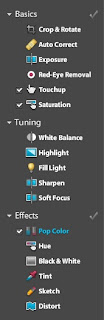
- I can play without an account, but I can’t work with my own photos without an account.
- Photoshop Express currently works only with JPEGs.
- I can upload multiple files at a time from my computer.
- Photoshop Express currently works with Facebook, Photobucket, and Picasa.
- When I upload a photo from my computer, I can select it in My Photos, and then choose to edit it.
- In order to download my edited and saved photo to my computer, I mouse over the photo. That makes the options menu visible and then I can choose to download the photo to my computer.
- Functions that are available include: crop and rotate, resize, auto correct, exposure, red-eye removal, touchup, saturation, white balance, highlight, fill light, sharpen, soft focus, hue, black and white, tint, sketch, distort, and pop color.
Photoshop Express is easy to use. Although some features that I would like are missing—layers, tools for drawing shapes, the ability to add text—some nice features that are included are storage space for photos, the ability to share photos, and slideshow settings for albums.
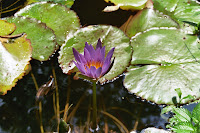
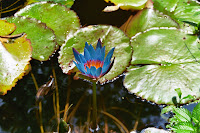 What delighted me was that I can pop color! I can’t do that with my current image-editing application. My purple water lily looks great in blue!
Adobe Photoshop Express web sites…
Adobe Photoshop Express application web site:
http://www.photoshop.com/express
Photoshop Express Support Center (links to FAQs and other support): http://www.adobe.com/support/photoshopexpress/
Adobe Photoshop Express Getting Started (excellent short training videos):
http://www.photoshopexpresstechniques.com/
Check Steve Dembo’s blog, Digital Passports: Your passport to the wide world of Web 2.0!, to read an interesting comparison of Adobe Photoshop Express and Picnik.
I’ve discovered a web site that has some very useful links. The site is 21ST CENTURY CONNECTIONS: Innovative technologies to inspire digital creativity in 21st century classrooms (http://21centuryconnections.com/).
This web site is designed to provide resources for digital learning.
Technology & Learning (http://www.techlearning.com/) hosts the site.
Lenovo (http://www.lenovo.com),
Adobe (http://www.adobe.com/),
Intel (http://www.intel.com/), and
Futurekids (http://www.futurekids.com/) provide the information.
Here’s some of what I found:
• Photo Composition 101… instructions from Adobe for composing photos well
I’ve been taking more photos recently. I even entered two of them in a contest recently. However, my husband is the photography “pro” in our household. He recommended last week that I work on composition when I take photos. We had an interesting conversation as he shared some ideas with me. This short tutorial—Photo Composition 101—fits in perfectly with our discussion. It echoes some of my husband’s advice and adds a couple new ideas to keep in mind. One of the suggestions is that the point of interest in a photo be placed at one of the four points of intersection of lines which divide the photo into thirds horizontally and vertically rather than at the center of the photo.

The first photo is more interesting than the second one due to placing the statue at an intersection rather than in the center of the photo.

• Top 10 Tips for Digital Photography… also from Adobe
This article is worth several years of experience. You can learn the same ideas on your own, but it would be so much faster to learn by reading the article. One interesting technique I learned is that the camera may take pictures more quickly if the LCD screen preview is turned off.
• Nine Needs for Web Literacy… from TechLearning.com
Two of the suggested topics to include when teaching web literacy are web site spoofs and email spoofs. It is certainly very important to help both children and adults learn how to recognize these today.
• NECC Insights Offered in Podcasts… hosted on Apple’s Learning Interchange
Did you miss NECC? Or would you like to hear some of the speakers again? You can listen to Ian Jukes, Andrew Zolli, Doug Johnson, and others.
My only complaint about the site is that it’s difficult to discover some of the good information that’s available. Once you do discover it, though, you can use the Search function to find it again, if necessary.
I’ve shared some of the links on this web site that I find useful. I think you will find additional links that fit your interests.
 thumbnails to see which result I like best. With some of the editing functions a slider is also available to help me choose my preferred result. The thumbnails help me make my choices.

 What delighted me was that I can pop color! I can’t do that with my current image-editing application. My purple water lily looks great in blue!


